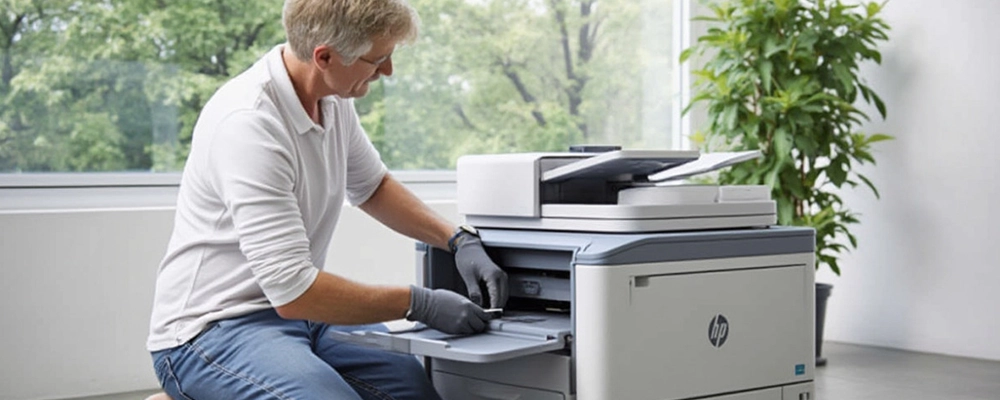
Think of this: it’s a bustling day, and you're due for an important business presentation for your clients. With time slipping away, your mission is to print some copies, but your trusted MFP has other ideas. Frustration is building as you look for ways to make your MFP more affordable. Buckle up. You’re about to enter a world where multifunction printers, or MFPs, are the miracle workers behind the way you run your business. MFPs form the backbone of your business, from printing important documents to facilitating vital communication with clients. But like any sophisticated piece of technology, MFPs are not immune to issues. And how can one steer clear of such issues? The key is multifunction printer maintenance. By staying on top of your office’s most commonly used equipment, you can guarantee a smoothly functioning office while dodging costly printer repairs. Here’s a no-nonsense guide to help with multifunction printer maintenance.
Ensure that your multifunction or all-in-one printer is squeaky clean and free from any dust. You must maintain the cleanliness on the outside of the printer using a soft and lint-free cloth and a gentle cleaner. Avoid using any rough materials or strong chemicals that might damage the surface. It is also essential that you don’t forget to clean other parts of the printer, including the scan bed and document feeder. You should use only a soft, lint-free cloth designed for electronics.
When the ink or toner in the cartridges is depleted, the printheads (in the case of an inkjet printer) or the imaging drums (in the case of a laser multifunctional printer) might not be properly lubricated or cooled. In turn, this can cause the printheads or imaging drums to overheat, thereby damaging the said devices. Air can also infiltrate the space that was previously filled by the cartridges, and that is never a good thing. Air can form bubbles or pockets that can interfere with the ink or toner from flowing. Furthermore, dust can build up inside the empty cartridge, eventually affecting the printing quality when additional supplies of ink or toner are inserted. It is, therefore, important that you regularly check the levels of the ink or toner supplies in the cartridge to ensure that you do not run out during the most critical printing phases. Use the appropriate cartridge or the corresponding refills. You can also change the imaging drums, transfer belts, or the waste toner containers, as appropriate, based on the manufacturer's guidance.
Ensure the paper and media loaded in the trays are free from moisture, wrinkles, or damage that could cause paper jams or poor print quality. How do you achieve that? First of all, store the paper in a cool and dry place to stop it from soaking up moisture or curling. After this, adjust paper guides and trays according to the correct paper size for any misfeeds. Also, remind your staff and other MFP users at the office about proper printer use, including storing, managing, and loading the paper and media in the trays.
Perform regular firmware and software updates whenever the manufacturer releases updates. Most of these updates contain bug fixes and performance enhancements, as well as security patches. Moreover, updating may add new features to your all-in-one printer and enhance its performance for faster printing, improved print quality, and better resource utilisation. Therefore, you must not miss the firmware and software updates.
Buy and use original or high-quality compatible consumables as recommended by the printer manufacturers. Lower-quality consumables can cause the printer to break down or print output of poor quality. Moreover, using consumables not approved by the printer manufacturers can result in your printer’s warranty being nullified, thereby giving no protection in case of its failure. High-quality supplies are designed specifically for your printer model, guaranteeing consistent performance, optimal print results, and longevity for your MFP.
PWould you like to take more initiative yourself? Take a look at the printer maintenance schedule. For routine maintenance tasks such as cleaning printheads, calibration of colours, or replacement of maintenance kit packs, simply follow the manufacturer's recommendations. To maintain the printer’s Print Quality, ensure the automated clean cycles are enabled on selected Multifunction Printers.
Is it wise to keep your printer running? Here's what we recommend: To save energy and lessen component wear and tear, switch the MFP to sleep or power-saving mode when not in use. Continuously running your printer can lead to a number of problems, such as the printhead being clogged or the ink drying out. Because inkjet printers' liquid ink can dry out if kept idle for extended periods of time, this is very important. Additionally, leaving your printer running can make it more susceptible to electrical issues or power surges. Just be careful not to unplug the power source or turn off the printer suddenly, since this could cause damage or data loss.
Like any machine, your multifunction printer is at risk of damage when handled poorly. Therefore, do not weigh down the printer with heavy objects or subject it to intense heat or cold, or exposure to direct sunlight. Also, be careful as you feed the paper into the printer or remove it, as well as avoid ripping any jammed papers from the printer.
If your MFP is frequently used or if it is already showing symptoms of poor performance, it might also be a good idea to have regular servicing done on it. Never forget to check your user manual to see what kind of maintenance is needed for your multifunction printer.
Printerforrent.ae offers a same-day multifunction printer repair service across Abu Dhabi. Our seasoned printer technicians can perform prompt and full-service multifunction printer repairs because they work from mobile workshops stocked with genuine and remanufactured replacement parts. So if you need regular servicing or any printer maintenance work, don’t hesitate to reach out to us. Call us at 800767823 and make the most of our fixed rate call-out fee to secure a value-for-money repair of your multifunction printer. Or fill out our contact form.